August 26, 2026
Shopify for Beginners: Complete Store Setup, Step by Step
Learn Shopify for beginners with a realistic, step-by-step store setup tutorial. See costs, must-have settings, and a launch checklist for your first online store.

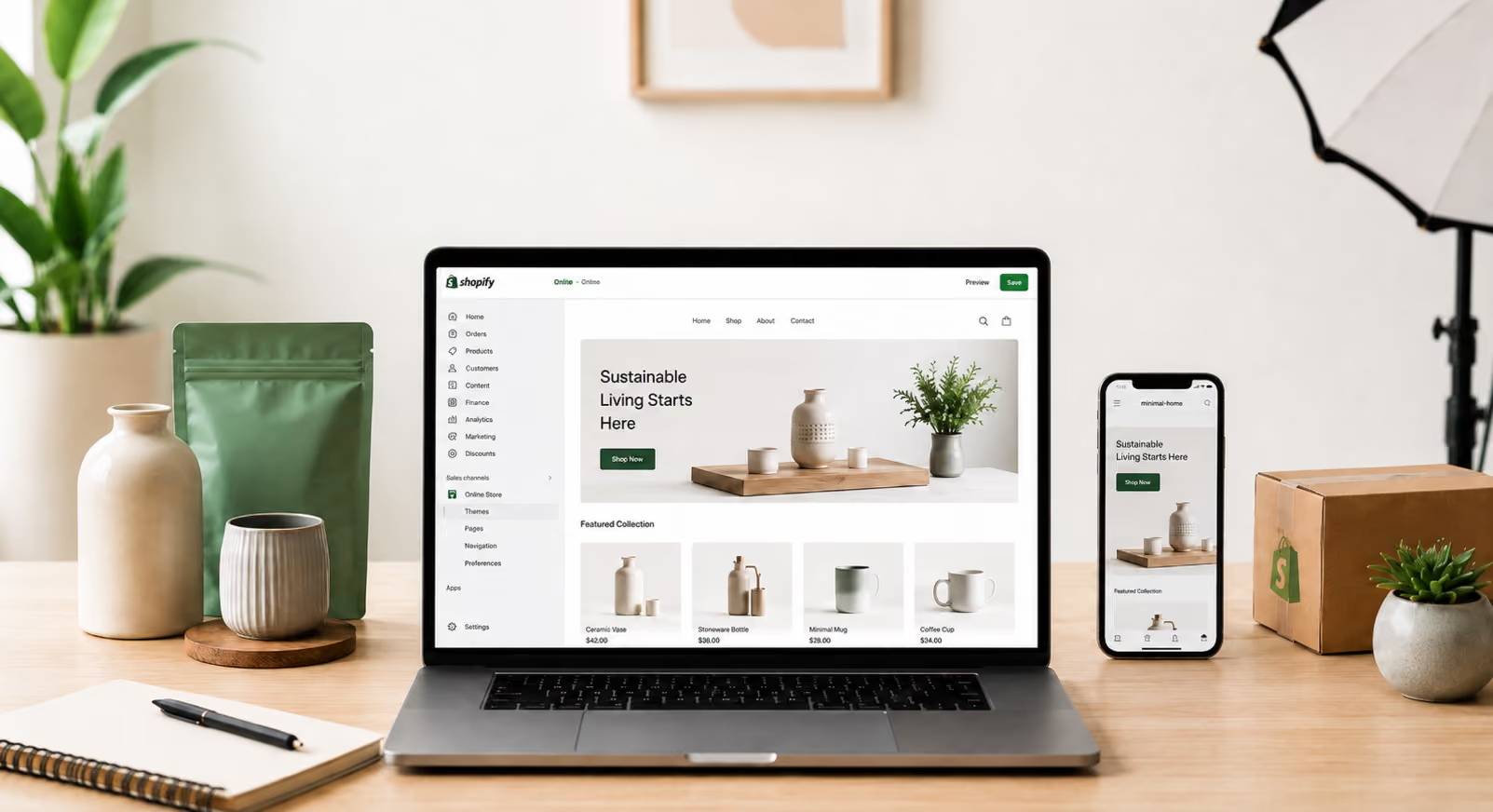
If you want to sell products online but have never built an online store, Shopify is one of the most common starting points. This guide explains how to set up a Shopify store from scratch, covering the settings, costs, and decisions you need to make before your first sale. By the end, you will have a clear checklist to move from a blank Shopify account to a live, functioning e-commerce store.
Before you begin, it helps to understand the broader launch process. See Webgru's realistic guide to starting an online store in 2026 for the business decisions that come before the technical setup.
Shopify is a hosted e-commerce platform. You pay a monthly subscription, and Shopify handles the servers, security, SSL certificates, and software updates. You do not need to install anything on your own hosting.
Every Shopify store has two sides:
Core concepts you will encounter:
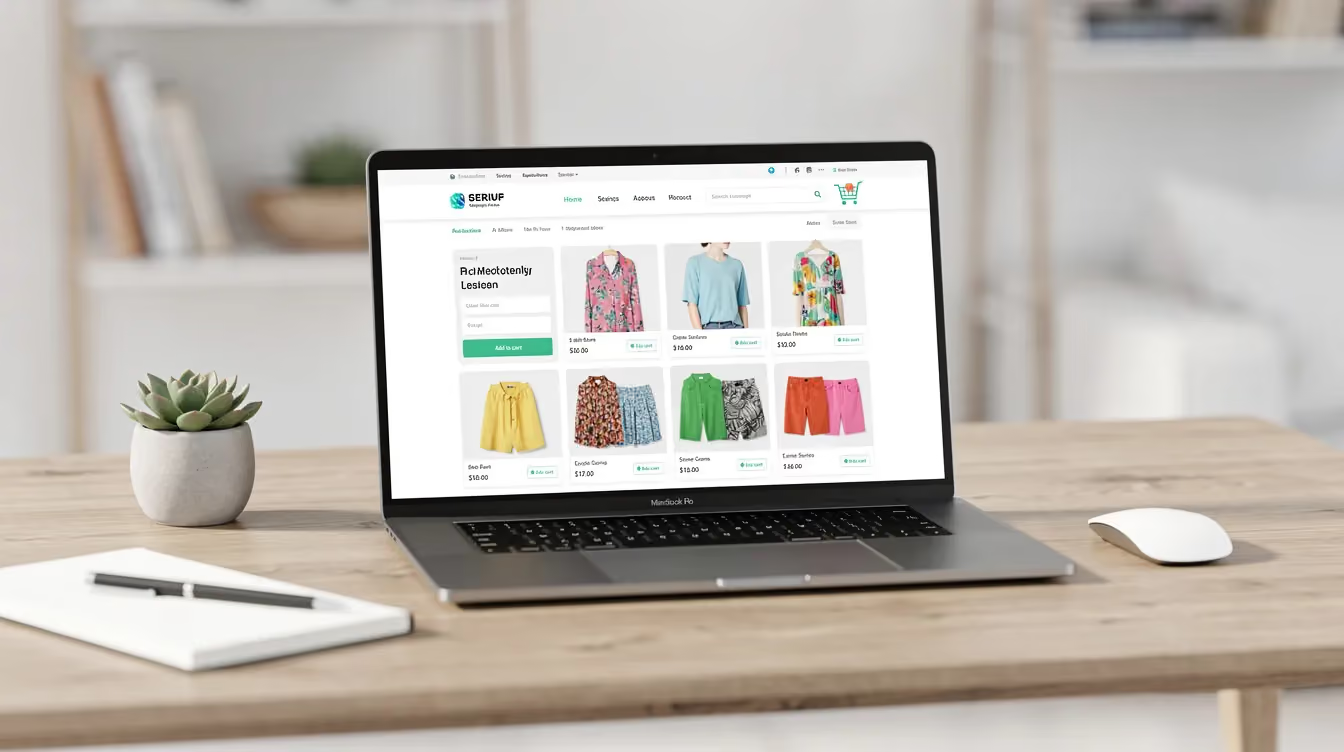
Shopify can work well for beginners, but it is not the right fit for every situation.
Where it works well:
Where it may not be ideal:
The right choice depends on your budget, technical comfort, launch speed, and business model. If you are still deciding what type of online business to build, compare the trade-offs in E-Commerce vs Digital Products: Which Should You Start First?.
Planning before you start building prevents unnecessary rework. Treat this as your Shopify store setup checklist before touching the software.
If you need a broader learning sequence before you build, use the Webgru beginner e-commerce roadmap to see where store setup fits within product, traffic, conversion, systems, and automation.
This is the core shopify tutorial section. Follow these 14 steps in order to go from a blank account to a live online store.
Visit Shopify's official site and start the free trial flow. Shopify offers a three-day free trial for new accounts, and promotional pricing (such as $1/month for the first three months) may be available-check the current pricing page to confirm.
Enter your email, create a password, and choose a temporary store name. You can change the visible store name later, but the underlying myshopify.com subdomain (your default domain) stays as-is. Shopify will ask onboarding questions about what you plan to sell and where you are based. These help pre-configure some settings, so answer them honestly.
Open the Shopify admin and go to Settings. This is where your global store settings live.
Enter your store name, legal business name, and business address. Shopify requires a valid business address for account setup, and this data appears on invoices and some customer-facing emails. Set your base currency (you can set a default currency for your store during setup), time zone, and measurement units. If you sell physical products, getting the weight unit right now matters for shipping calculations later.
Navigate to Online Store → Themes in the Shopify admin. From here, you can browse the themes section or visit Theme Store to find both free and paid options.
For beginners, starting with a modern free theme is practical. You can always switch later once you understand your store design needs better. To customize theme settings, open the visual editor where you can adjust sections, header, footer, homepage layout, logo, colors, typography, and layout. Theme settings include all of these elements and you can preview your theme before publishing changes. Always check both desktop and mobile previews-over half of all online shopping happens on mobile devices.
Shopify allows A/B testing of theme variants, which can be useful once you have traffic, but is not a priority on day one. You can customize themes using the Shopify admin dashboard without touching code.

Go to Products in the Shopify admin. Click "Products" and then "Add product" to open the product creation form.
Fill in the key fields:
When adding products, upload images and input product descriptions in the same form. Select sales channels and configure tax options for each product. Then save your product details after adding them to Shopify.
Organize products into collections for easier navigation. Collections can be manual (hand-picked) or automated (rule-based, using tags, product type, etc.). This makes merchandising and menu building much simpler in the next step.
Create key pages under Online Store → Pages: About, Contact, Shipping & Returns, FAQ, and your legal policies. Clear navigation improves user experience on e-commerce sites, so keep things simple.
Build navigation menus under Online Store → Navigation. Add your main collections and pages to the header menu; put secondary links (policies, FAQ) in the footer menu. Use SEO best practices to enhance online visibility for your product pages and collections-fill in the search engine listing section on each page and product with a descriptive title and meta description.
Your store starts with a default domain (yourstore.myshopify.com). For any serious marketing effort, you need a custom domain name. A professional custom domain builds brand trust and is easier for customers to remember.
Go to Settings → Domains to buy a domain through Shopify or connect an existing one via DNS settings. You can purchase a custom domain for about $10 to $20 per year depending on the extension and registrar. Confirm current pricing at the time of purchase.
Navigate to Settings → Payments in the Shopify admin.
Enable Shopify Payments where available. Setting up Shopify Payments reduces transaction fees-in fact, Shopify Payments has no additional Shopify transaction fees for users (you still pay credit card processing fees, which vary by plan and country). You can connect multiple payment gateways in Shopify if needed. Shopify supports PayPal, Amazon Pay, and Apple Pay as additional options. You can also set up manual payment options like cash on delivery or bank transfer.
Processing fees on the Basic plan are approximately 2.9% + $0.30 per transaction in the USA. Rates vary by plan and region-verify on Shopify's pricing page before launch.
Go to Settings → Shipping and delivery to set up your shipping profiles and rates.
Shopify automatically adds domestic and international shipping zones when you create your store. From there, you can configure delivery methods in Shopify's shipping settings by assigning rates to each zone: flat rate, rate by product weight, or free shipping thresholds. You can set domestic delivery fees to $0 for free shipping if that fits your strategy. Shipping rates can be adjusted to match your shipping policy at any time.
Shopify allows you to buy and print discounted shipping labels directly from the admin in supported countries. Carrier availability and shipping costs depend on your location-check Shopify's documentation for your region.
Tax requirements depend heavily on your jurisdiction and business type. In the USA, you may need to register for sales tax in states where you have nexus. In the UK, VAT obligations apply above certain thresholds.
Shopify can calculate some taxes automatically based on your store's address. Automated tax settings help in sales tax calculations during checkout. However, store owners are responsible for verifying rates and registration duties with local tax authorities.
Create or adapt legal pages (privacy policy, terms of service, refund policy) using Shopify's built-in generators as a starting point. Consider having them professionally reviewed.
Go to Settings → Checkout to choose options for customer accounts (optional vs. required), contact methods (email only, or email and phone), and marketing consent checkboxes. Making customer accounts optional rather than mandatory reduces friction for first-time buyers.
Check and edit email templates under Settings → Notifications. Order confirmation, shipping updates, and abandoned checkout emails should be branded and clear. These are what your customers see after every purchase, so make them professional.
The Shopify App Store is accessible from the Shopify admin sidebar. It contains thousands of apps for every conceivable feature.
Start with a minimal stack. For most new stores, an email marketing app and a reviews app are enough. You can connect apps to enhance your store's marketing capabilities as you grow-set up Shopify Messaging for email or SMS marketing campaigns, for example. Every app can add cost and complexity, so check pricing and reviews before installation. Avoid installing dozens of apps before you have made your first sale.
Shopify provides built-in analytics on orders, traffic, and conversion in the Analytics section of the admin. Before running any paid campaigns, connect Google Analytics and relevant advertising pixels (such as Meta Pixel) following Shopify's current instructions.
Having tracking in place from day one means you collect data on every visitor, which is essential for improving your entire store over time. Improve visibility by optimizing your store's SEO and monitoring which search engine results bring traffic to your site.
Before you accept orders from real customers, run test orders. Test orders ensure your checkout process is working correctly.
You can place a test order using Shopify Payments in test mode. Alternatively, use the Bogus Gateway to simulate test transactions-Shopify allows testing payment configurations with the Bogus Gateway. Testing includes verifying successful and failed transactions. Test discount codes and multiple shipment addresses during checkout to make sure everything calculates correctly.
Test on both mobile and desktop. Check product pages, cart behavior, shipping calculations, the checkout page, order confirmation emails, and order status pages. Use discount codes to attract new customers once you are confident the codes work properly.
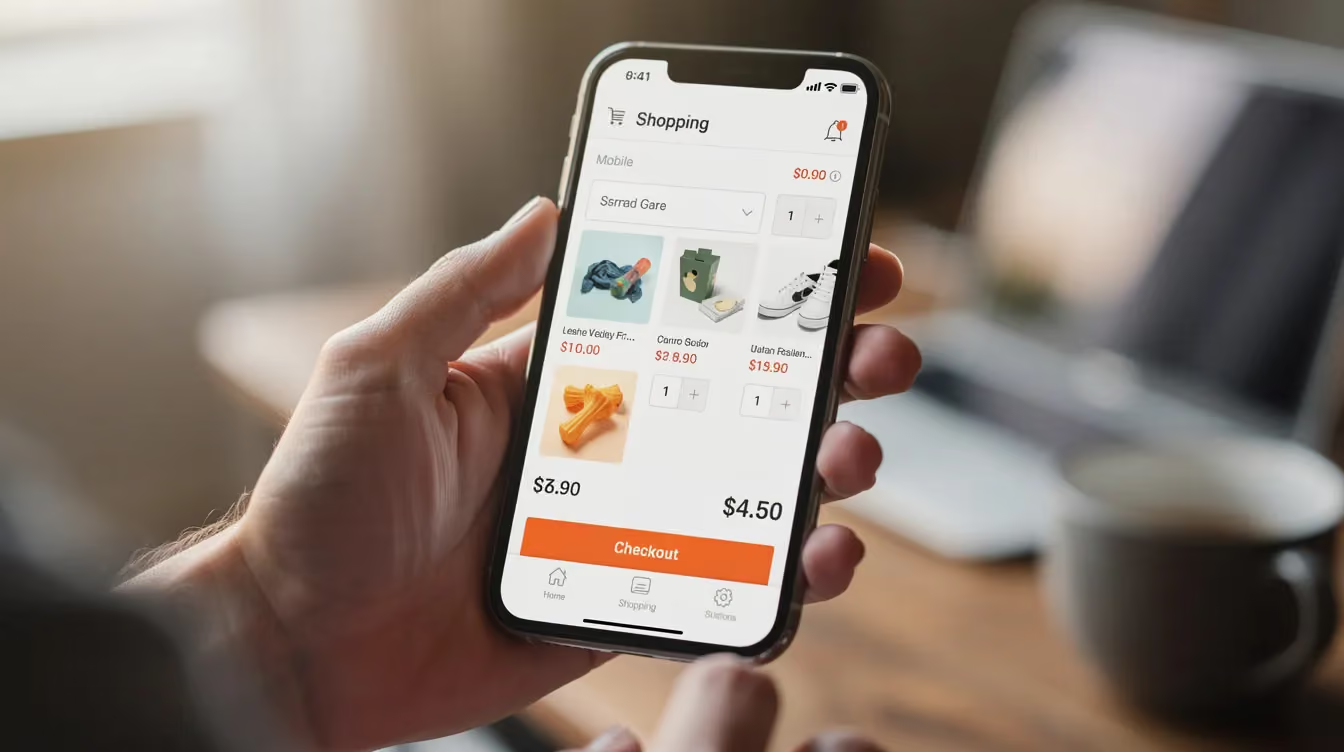
When the store is ready, remove the storefront password so customers can access it. Consider a controlled soft launch first so you can catch issues before driving meaningful traffic.
After launch, monitor orders, support requests, and analytics closely. Store setup is only the foundation; the next phase is learning what attracts qualified traffic and what improves conversion.
As you build the store, keep the wider operating system in mind. Webgru's E-Commerce Systems Stack 2026 explains how store, checkout, analytics, retention, operations, and growth tools should work together instead of becoming a collection of disconnected apps.
All pricing below was verified against Shopify's official pricing page at the time of writing (August 2026). Plans and fees can change-always confirm before committing.
Shopify offers a three-day free trial and sometimes promotional pricing for the first months. Paid themes and apps are optional-start for free where possible when you are learning. Marketing budget should be planned separately from platform fees.

Avoiding common pitfalls saves money and frustration in the first months of running an online business.
Setting up the store is the foundation, not the finish line. The skills that matter after launch are the ones that help you attract the right customers, convert them, retain them, and make better decisions.
If you want a structured learning path beyond this guide, explore the Webgru E-Commerce Academy, which is designed around step-by-step e-commerce learning, store setup, systems, and AI-supported workflows.
Is Shopify easy to use for complete beginners?
Shopify removes much of the hosting and infrastructure work that comes with a self-hosted platform, which can make the technical starting point easier. There is still a learning curve around products, shipping, taxes, checkout, marketing, and measurement.
Do I need a custom domain name before I start?
No. Shopify provides a default myshopify.com domain, so you can build and test the store before connecting a custom domain. A custom domain is usually preferable before public marketing because it gives the store a branded address.
Can I build a Shopify store without registering a company?
That depends on your jurisdiction and business activity. Registration, licensing, sales tax, VAT, and consumer-law requirements vary by country and region. Use official government guidance or qualified professional advice for your situation.
How long does it take to set up a basic Shopify store?
There is no reliable universal timeframe. The technical setup can be relatively quick, but product information, photography, shipping rules, legal preparation, testing, and offer quality often take longer than the software configuration itself.
Do I need apps to run my first Shopify store?
Not necessarily. Shopify includes many core store features. Add third-party apps only when a specific requirement is not covered well enough by the platform or when the app clearly improves an important workflow.
Sources Used
Time-sensitive Shopify facts were checked against official Shopify sources in August 2026:
Shopify Pricing - https://www.shopify.com/pricing
Shopify Help Center - https://help.shopify.com/
Shopify Domains - https://help.shopify.com/en/manual/domains
Shopify Shipping and Delivery - https://help.shopify.com/en/manual/fulfillment/setup/shipping-rates
Shopify Taxes - https://help.shopify.com/en/manual/taxes
Shopify Plus Plan - https://help.shopify.com/en/manual/intro-to-shopify/pricing-plans/plans-features/shopify-plus-plan
Our latest news and trending topics
Learn E-Commerce with clarity, discipline and real experience.